Vertical, done right
9:16 for Reels, Shorts and TikTok. Your screen on top, you underneath, captions on — and zooms that keep the action in frame.
Launch sale: Framecast is 50% off, $79 $39 once, with lifetime updates. Ends in .
A native Mac app with on-device AI
Hit record and just talk. Framecast zooms in on every click, glides your cursor, frames your camera and blurs anything private — before you ever open an editor.
macOS 14 or later · Apple silicon recommended · Free to try
Every video on this page is real Framecast output, recorded in
The difference
Drag across. On the left, what your Mac captured: a customer list typed into a spreadsheet, too small to read. On the right, what Framecast made of it — the camera follows the typing, cell by cell. Nobody touched a keyframe.
Focus
Framecast watches your clicks, typing and scrolling, then plans a camera move for each one: in close, along with the cursor, and gently back out. You never place a zoom by hand — unless you want to.
SaaS dashboard — zooms in on every click
Camera
Open full-screen, slip into a bubble while you click around, then step in front of your screen with the background removed. One take holds every layout, and the switches animate themselves.
Plausible — full screen, then a bubble, then a cut-out
Privacy
Framecast reads every frame on your Mac and finds what shouldn't be shared — API keys, passwords, email addresses, card numbers — then blurs them. The blur follows the text when you scroll.
Explain
Because Framecast knows which control you clicked, it can drop a numbered badge right on it, step by step. Add arrows, boxes and notes that stay pinned to the screen while the camera moves.
Edit
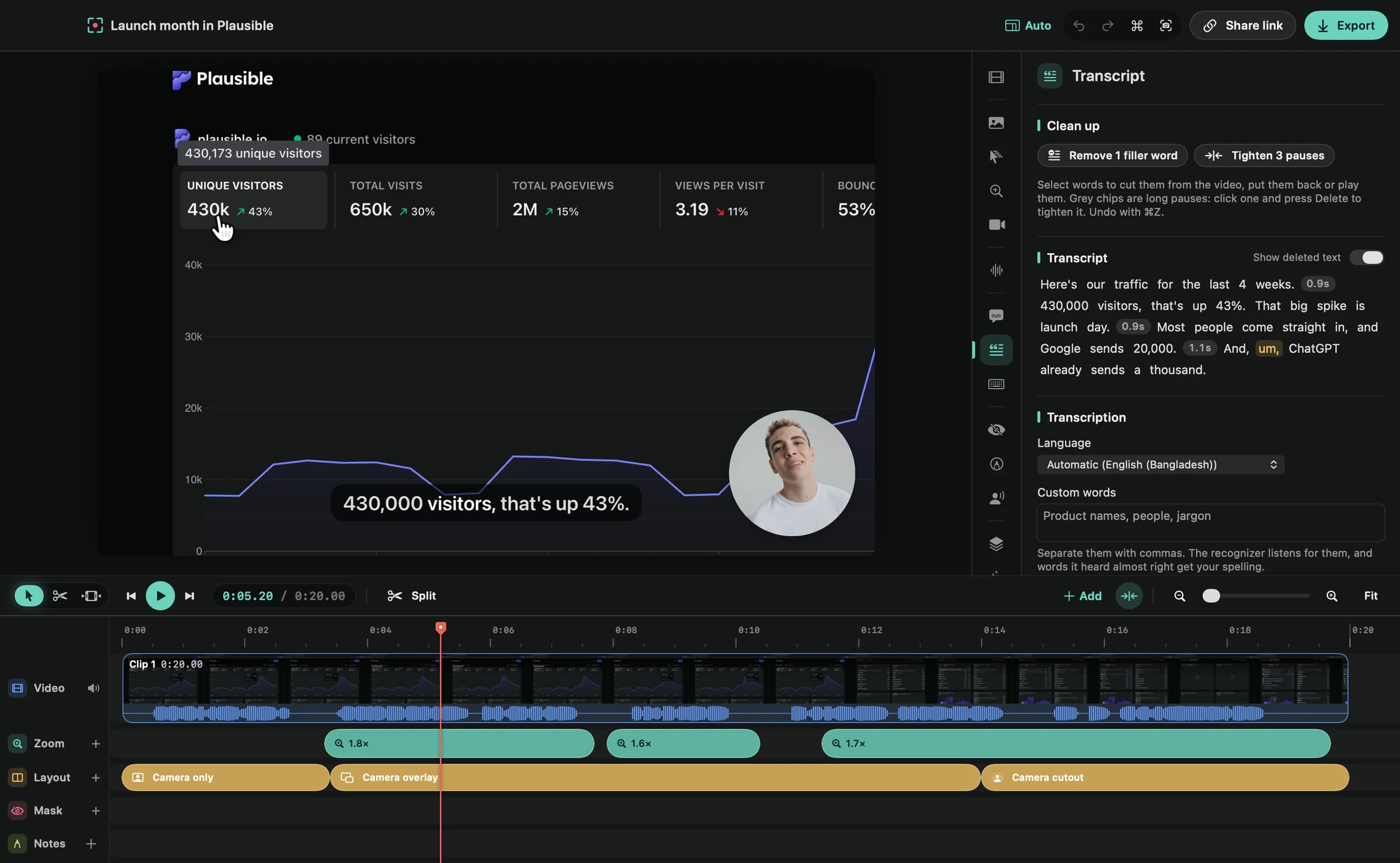
When you stop recording, the zooms are placed, the cursor is smoothed and the background is set. The editor is there for the last ten percent — with a real timeline, a transcript you can cut, and every setting one click away.
Outputs
One recording becomes the wide demo, the vertical clip, the help-center guide and the link you paste in Slack.
9:16 for Reels, Shorts and TikTok. Your screen on top, you underneath, captions on — and zooms that keep the action in frame.

Chapters, a searchable transcript, captions and comments. Private links, passwords or invite-only.

A written how-to with a screenshot for every click. HTML, Markdown or PDF.

The video pauses at each step until your viewer clicks the highlighted spot.
Intro, outro and scene cards on your background. Chapters land in the MP4 and the share page.
Wallpapers, gradients, colors or free photos. Shadows, corners and padding.
Recording
A small console sits at the bottom of your screen. Choose a display, a window, an area or a plugged-in iPhone, bring your camera and voice, and go.


And more

Built for Mac
Written in Swift with a Metal render engine, so exports fly on Apple silicon. Transcripts, translations and AI run on your Mac. Your recordings stay in a folder you choose — nothing is uploaded until you share.
Pricing
Record and edit with every feature for free, for as long as you like. Exporting your videos needs a license. No account, and no subscription unless you want one.
Record and edit with every feature. Export with a license.
Yours to keep. Launch sale: 50% off until
For a single project. Cancel any time.
Prices in USD, plus tax where it applies. Students get 40% off. See current prices and license options.
Questions
Something else? Write to us.
Yes. Download it, then record and edit with every feature for as long as you like. To export, which means saving, copying or sharing what you made, you need a license. Buy one when you’re happy with the result.
A Mac with macOS 14 Sonoma or later. Apple silicon is recommended for the fastest exports. A few AI features, like titles and summaries, need Apple Intelligence on a supported Mac.
Only what you share. Recordings, transcripts and AI all stay on your Mac. When you make a share link, Framecast asks first, then uploads the finished video, not your original recording, to share.framecast.pro. Your license includes the hosting, so there’s nothing to set up. The privacy policy lists exactly what’s sent.
A license key, by email and on the page after checkout. It lets you export on up to 3 Macs, and every future update is yours too.
No. Every future version of Framecast is included with your license, and there’s nothing to renew. Framecast tells you when a new version is out.
Yes. Plug it in with a cable, pick it in Device mode, and record. The same editor and effects apply.
Yes. Deactivate the old Mac in Framecast › Settings › License, or remove it on your account page, then activate the new one.
No. Framecast is built for the Mac, and only the Mac.