Framecast Guide
Everything Framecast does, and how to use it.
Short guides with a real video for each feature. Every video on these pages is a recording of a real product, made with Framecast.
- Record. Press ⌥⌘↩, pick a display, window or area, and press Record. The recording bar
- Edit. Framecast adds zooms, smooths the cursor and frames the video for you. Change anything you like. The editor
- Share. Export an MP4 or GIF, copy it to the clipboard, or share a link. Export a video
Getting started
 Install FramecastDownload Framecast, drag it to Applications and open it. It runs on macOS 14 Sonoma or later and keeps itself up to date.
 PermissionsFramecast needs the Screen Recording permission to record. Camera, Microphone and Accessibility are optional and turn on more features.
 Your first videoRecord your screen, let Framecast add the zooms and the background, then export or share. Three steps, a few minutes.
- Your licenseRecord and edit with every feature for free. A license lets you export what you make, on up to 3 Macs.
Recording
- The recording barEvery recording starts here. Pick what to record, your camera, microphone and sound, then press Record.
 Record a displayRecord everything on one screen. Framecast’s own windows, like the recording controls and your notes, stay out of the video.
 Record a windowRecord one app window. Windows that pass in front of it stay out of the video, and Framecast can resize the window to an exact size first.
 Record an areaDraw a box around the part of the screen you want. Type an exact size, keep a shape like 16:9, and save sizes you use often.
 Record an iPhone or iPadPlug in your iPhone or iPad with a cable and record its screen and sound. In the editor it sits in a drawn device frame.
 Camera and microphoneAdd yourself and your voice. Pick a camera and a microphone on the recording bar; each is recorded on its own, so you can change it later.
 System audioRecord the sound playing on your Mac, from every app or only the apps you choose. Your microphone is recorded separately.
 While you recordThe recording controls let you pause, restart, mark a mistake, drop a marker or stop. They sit in the corner of the screen and never appear in the video.
- Oops: cut a bad takeStumbled over a sentence? Press ⌥⌘O, pause, and say it again. Framecast cuts the bad take for you when the recording opens.
 Speaker notes and teleprompterKeep your script on screen while you record. Only you see it, it’s never in the video, and the teleprompter scrolls it for you.
 Recording optionsThe gear on the recording bar holds the options you change most: what to hide while you record, what happens after, the countdown and the frame rate.
 After recordingChoose what happens when you stop: open the editor, or skip it and copy, share or save the finished video from a small card.
 Import a videoBring in a video you already have, like an older screen recording, and give it a background, zooms, captions and more.
 TakesAdd another recording to the end of a project: a new take you record now, or one that’s already in your library.
 Recording shortcutsStart, pause and stop recordings from any app with keyboard shortcuts, and change them in Settings › Shortcuts.
Zooms
 Automatic zoomFramecast zooms in where you click and type, and follows your pointer while it’s zoomed. You don’t have to place a single zoom yourself.
 Frame what you clickWhen you click into a menu or a dialog, the automatic zoom fits the whole thing on screen instead of a fixed area around your pointer.
 Follow the text caretWhile you type, the camera follows the text caret, not the pointer resting somewhere else on the screen.
 Add and edit zoomsAdd a zoom anywhere, set how far it zooms in, and choose whether it follows your pointer or stays on one spot.
 Instant zoomCut straight into a zoom instead of gliding in, for a snappier look. Make one zoom instant, or every zoom; zooming back out still animates.
 LoupeA round magnifying lens over one spot, while the rest of the screen stays where it is.
 3D tiltWhile zoomed in, your recording turns toward your pointer in perspective, like a camera moving around it. It lies flat again when the zoom ends.
 Zoom defaultsSet the zoom level, motion, speed and follow style your zooms start with, and copy one zoom’s settings to the others.
 AI upscalingKeeps small text sharp in deep zooms by redrawing the zoomed-in part with Apple’s upscaler, on your Mac.
Editing
 The editorA tour of the editing window: the toolbar, the preview, the inspector with its tabs, and the timeline.
 Edit on the timelineSplit, trim, move, duplicate and delete clips, add zooms, layouts and masks on their lanes, and find your way around the timeline.
 Change the speedSpeed up or slow down any part of your video, from 0.25× to 16×. Voices keep their pitch.
 Speed up typingPlay every stretch of typing faster in one click, so viewers don’t sit through every keystroke.
 Speed up waitingFramecast finds the parts where you wait for something to load or finish, and plays them fast.
- Work with a rangeMark any stretch of time, then delete it, speed it up, mute it or zoom in on it, without splitting clips yourself.
 Volume and mutingMute or change the volume of one clip, or of the whole microphone or system audio, and quiet the microphone between sentences.
- Crop the recordingCut away the edges of your recording so only the part that matters is in the video.
 Aspect ratioMake your video wide, square, vertical or 4:5 for feed posts. Zooms, the camera and captions re-arrange for each shape.
 Vertical videoTurn a screen recording into a 9:16 video for TikTok, Reels and Shorts, with the recording filling the frame.
 Title slidesAdd an intro, an outro or a title card in between, set on your background, with a smooth transition.
 Command menuPress ⌘K and type to find any editing command, from Split to Find and blur private info.
- Editor keyboard shortcutsEvery key you can use in the editor, from playback to splitting, trimming and zooming the timeline.
Annotations & privacy
 AnnotationsAdd step numbers, text callouts, arrows and boxes that point at what matters and stay on target while the camera zooms.
 Number the clicksPut a numbered badge on every control you click, in order, so viewers can follow each step.
 MasksBlur, pixelate or blend away something on screen, or highlight one area by dimming everything around it.
 Find private infoFramecast reads your recording for API keys, emails, phone and card numbers and password fields, and blurs them in one click.
Captions & transcript
 CaptionsFramecast writes captions from your voice, on your Mac, and draws them into the video. Pick a style, then export them as subtitles if you need a file.
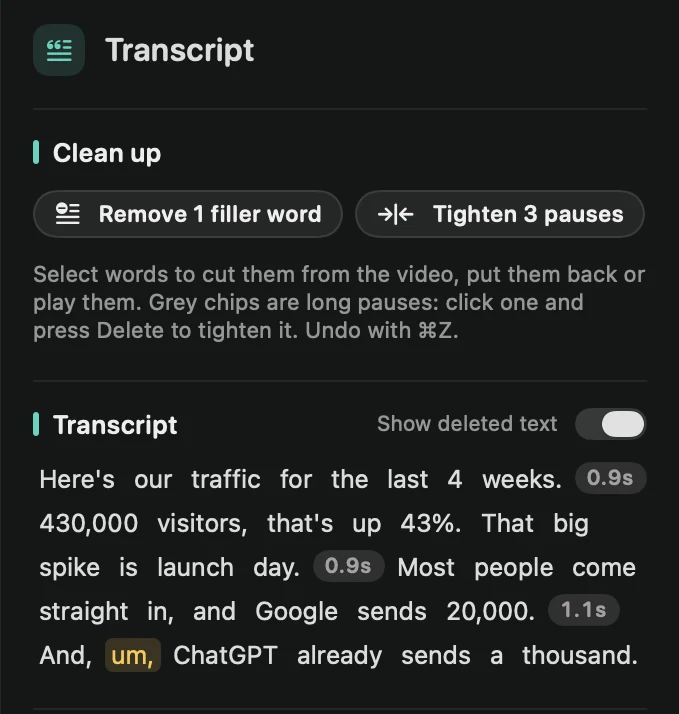 Edit with the transcriptCut your video by deleting words. Select them in the transcript, cut them, and the video follows. Anything you cut can go back in.
 Filler words and retakesTake every “um” and “uh” out in one click, tighten long pauses, and cut the sentences you started over.
 Transcription languageChoose the language Framecast listens for, teach it names and jargon, and decide whether new recordings are transcribed on their own.
Look & feel
 BackgroundPut your recording on a macOS wallpaper, a gradient, a solid color, your own image or a free photo.
 Frame and shadowSet how much space surrounds your recording, how round its corners are, and the border and shadow that lift it off the background.
 Your logoAdd your logo once and Framecast puts it in a corner of every frame. It moves out of your camera’s way on its own.
 CursorFramecast draws your pointer again after recording, so you can change how it looks, make it bigger, smooth out shaky movement and let it lean as it moves.
 Click effectsShow every click with a circle, a ripple or an outline around what you clicked, and add a soft click sound.
 Hide the cursorHide the pointer for the whole video, when it sits still, while you type, or in the parts you choose. It can also end where it started, for GIFs that loop.
 Motion blurFramecast adds a camera-like blur while the view zooms and pans quickly, so fast moves look smooth instead of choppy.
 Show keyboard shortcutsShow the shortcuts you press, like ⌘C, as labels in the video. Choose which keys count, where the labels sit and how they look.
 PresetsSave your look as a preset and apply it to any video in one click. Make it the look of every new recording, or send it to your team.
Camera & device
 Camera bubbleStyle the camera bubble: where it sits, its size and shape, a border and shadow, a color look and film grain. It can shrink while a zoom is on screen.
 Camera layoutsShow your camera as a bubble, full screen, side by side with your recording, cut out in front of it, or not at all. Switch layouts as the video plays.
 Camera cutoutFramecast removes the background behind you and stands you in front of your recording, like a presenter in front of a big screen. No green screen needed.
 Blur or change your backgroundBlur the room behind you in the camera, or put a picture behind you. Framecast finds you on your Mac, so there’s no green screen and nothing is uploaded.
 Smart cameraFramecast can keep your face centered, hide the camera while you’re quiet and move it out of your pointer’s way.
- Device frameiPhone and iPad recordings sit inside a drawn device frame. Pick its color, or turn it off.
Audio
 Voice enhancementFramecast cleans up your microphone on your Mac: less noise, an even volume and a clearer voice. Your original recording is never changed.
 Background musicPut a built-in track or your own song under the video. Framecast loops it, fades it in and out, and turns it down while you speak.
 AI voiceoverType a script and Framecast reads it aloud, right where you want it in the video. Use a free macOS voice or your own OpenAI or ElevenLabs account.
- Re-record narrationFix a sentence without recording the whole video again. Mark the part, speak over it, and your new take replaces what you said there.
Export & share
 Export a videoSave your video as an MP4, MOV or GIF. Pick the size, frame rate and quality, and see how long it will take before you start.
 Export a GIFTurn your video into a looping GIF for docs, READMEs, chats and emails. Choose the frame rate and size, then save it or copy it.
 Copy to clipboardSkip the save dialog. Copy the finished video, a GIF or a single frame, then paste it into Slack, Mail, Messages or a document.
 Share a linkGet a link anyone can open in a browser, with chapters, a searchable transcript and comments. Framecast hosts it for you, with nothing to set up.
 Private linksShare a video with only the people you name. Each person gets a personal link, you see who watched, and you can turn any link off.
 Step-by-step guideFramecast writes a how-to from your recording, with a step and a screenshot for every click and bit of typing. Export it as a web page, Markdown or PDF.
- Interactive demoTurn a recording into a click-through demo. The video stops at each step until the viewer clicks the highlighted spot, all in one folder for any website.
 Title, chapters and subtitlesOn the Publish tab, Apple Intelligence writes a title, summary and chapters for your video. Copy a ready-made description and export subtitles in 12 languages.
- Share a project with your teamSend teammates an editable copy of a project, not just the video. Framecast can take out what you typed, the parts you cut and what’s under your masks first.
- Export raw recording filesGet the original files Framecast recorded: the screen, the camera, your microphone and the system audio, each on its own, for another editor or a backup.
- Present liveShare your screen in a Zoom, Meet or Teams call with Framecast’s look, live: zooms where you click, your background, shortcut badges and click rings.
Help
- Recovered recordingsIf Framecast quits while you’re recording, your recording isn’t lost. The next time Framecast opens, it saves everything up to that moment.
- Backups of your editsEach time Framecast saves a project, it keeps the version before as a backup. If a project’s edits can’t be read, Framecast opens the last good save, keeps the damaged file and tells you.
- PrivacyYour recordings stay on your Mac. Framecast records, transcribes, cleans up and exports on your Mac, and uploads only when you ask it to.
- Get helpSomething not working? Copy your diagnostic info, find your recordings in Finder, and write to us. License questions are answered on your account page.
Can’t find something? Write to hello@framecast.pro and we’ll answer, and add it here.